User Interface Specification
Overview
This section is a functional specification from a user point of view. The goal is to provide information on screens displayed when an accident occurs. It provides a list of behaviors after actions, and specific cases.
These behaviors are implemented in the default screens included in the SDK. You can optionally disable this user interface and develop your own.
Here is an overview of the accident screens:
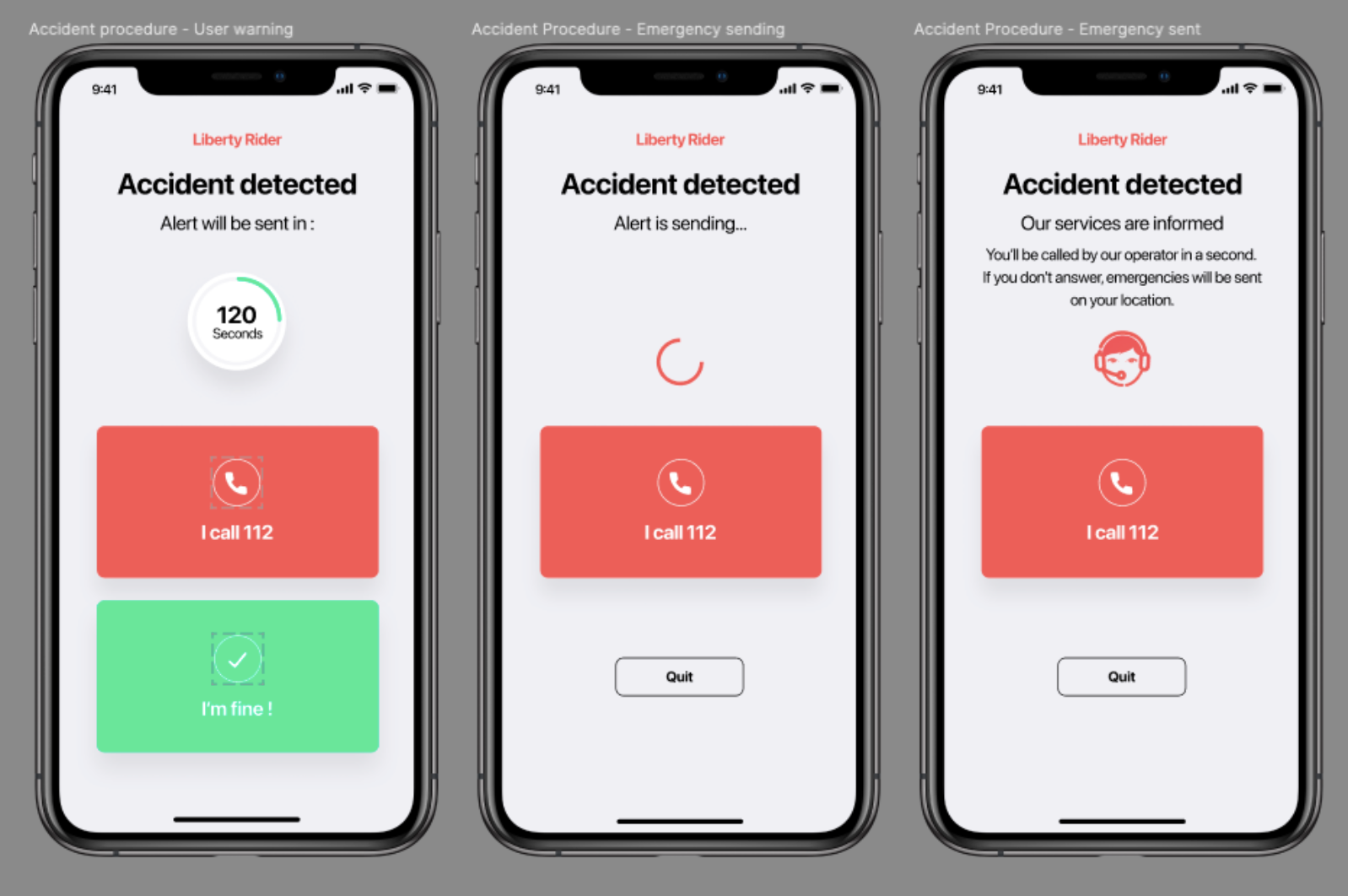
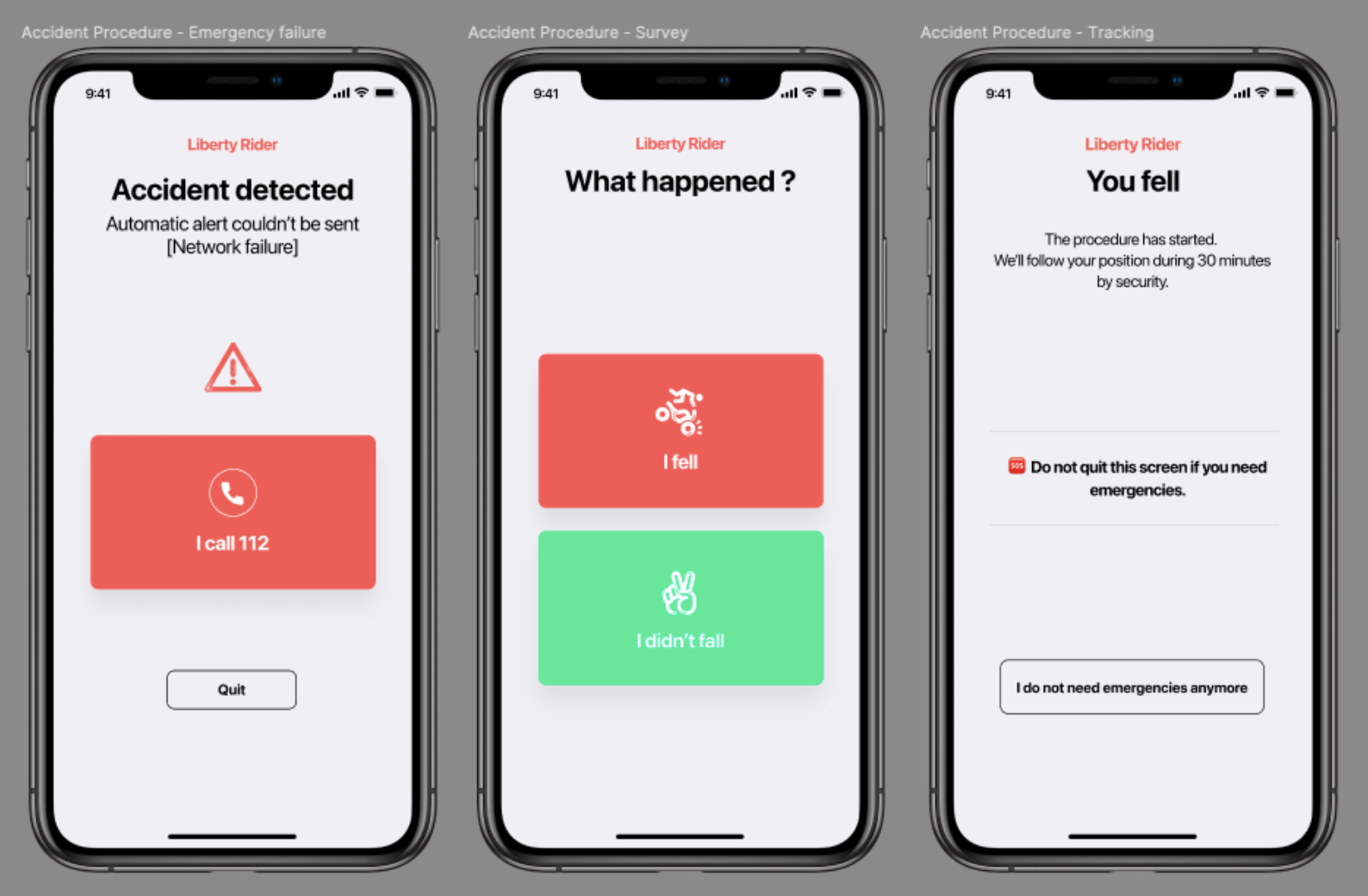
How to Add Custom Accident Screens
You would usually want a generic process to start when an accident is detected, as detailed in the Typical App User Stories section. If this is sufficient, you don't need to implement any user interface yourself: it is already included in the SDK and you can skip the whole section.
If you need more control though, the SDK status updates give you all the events and data you need to implement custom screens or user interactions tailored to your use case.
The code would roughly consist in subscribing to the SDK status updates (documented in previous sections), computing a "workflow state" to determine which screen to show, and calling the relevant SDK methods when the user interacts with the custom screens. Below are examples of how you can compute a "workflow state" to determine which screen to show.
Android UI State Example
enum class EmergencyWorkflowState {
    NO_EMERGENCY, ALERT_COUNTDOWN, EMERGENCY_SENDING, EMERGENCY_SENT, EMERGENCY_SENDING_FAILED, EMERGENCY_ENDED
}

override fun onStatusChanged(status: LRProtectionStatus) {
    val state: EmergencyWorkflowState = when {
        status.alert != null ->
            EmergencyWorkflowState.ALERT_COUNTDOWN
        status.emergency != null && status.emergency.hasEmergencySendingFailed ->
            EmergencyWorkflowState.EMERGENCY_SENDING_FAILED
        status.emergency != null && status.emergency.isEmergencySending ->
                    EmergencyWorkflowState.EMERGENCY_SENDING
                status.emergency != null && status.emergency.isEmergencySent && !status.emergency.isEmergencyEnded ->
                    EmergencyWorkflowState.EMERGENCY_SENT
                status.emergency != null && status.emergency.isEmergencyEnded && status.emergency.isEmergencySent ->
                    EmergencyWorkflowState.EMERGENCY_ENDED
                else -> EmergencyWorkflowState.NO_EMERGENCY
            }
        }
iOS UI State Example
enum EmergencyWorkflowState {
    case noEmergency, alertCountdown, emergencySending, emergencySent, emergencySendingFailed, emergencyEnded
}

func protectionStatusDidChange(_ status: LRProtectionStatus) {
    var state: EmergencyWorkflowState
    if status.alert != nil {
        state = .alertCountdown
    } else if let emergency = status.emergency {
        if emergency.isEmergencySending {
            state = .emergencySending
        } else if emergency.hasEmergencySendingFailed {
            state = .emergencySendingFailed
        } else if emergency.isEmergencySent {
            state = .emergencySent
        } else if emergency.isEmergencyEnded {
            state = .emergencyEnded
        }
    } else {
        state = .noEmergency
    }

}
Workflow States
Here is a description of each of the workflow states:
NO_EMERGENCY / .noEmergency
The protection is inactive, or the protection is active and no accident has been detected yet. There is nothing to show.
ALERT_COUNTDOWN / .alertCountdown
This state refers to US#2 - Start an Accident Process
An accident has been detected and you should display the countdown screen to the user based on the alert properties. In this state, the user should be able to stop the alert countdown by calling stopAlertCountdown() if they don't want any assistance. If there is no user interaction and the countdown ends, the next state will be EMERGENCY_SENDING.
EMERGENCY_SENDING / .emergencySending
This state refers to the first variant of US#3 - Emergency Request
This state means that an accident has been detected, the user has not stopped the alert countdown, and it's time to send an emergency to SafeRider servers. In this state you should tell the user that we are currently trying to send the emergency through the network. Barring any user interaction action the next state will be EMERGENCY_SENT or EMERGENCY_SENDING_FAILED.
EMERGENCY_SENT / .emergencySent
This state refers to the second variant of US#3 - Emergency Request
SafeRider servers have received the emergency and our operators will now take care of the user.
In this state you should allow the user to cancel the emergency by calling cancelEmergencyRequest(). Without any user interaction the next state will be EMERGENCY_ENDED after 30 min of user location tracking.
EMERGENCY_SENDING_FAILED / .emergencySendingFailed
This state refers to the third variant of US#3 - Emergency Request
The SDK wasn't able to send the emergency to SafeRider servers due to network or server issues. It usually takes 15 min without any network connection to reach this state. You should still allow the user to contact emergency services by calling 112 themself.
EMERGENCY_ENDED / .emergencyEnded
An emergency has been processed and post-accident tracking has ended (it usually lasts 30 min, to allow emergency services to follow the user). Now you can quit the emergency workflow by calling resumeProtectionAfterEmergency(), then the next state will be NO_EMERGENCY, meaning that neither alert countdown or emergency is ongoing.
US#1 - Start a Protection Session
As a user, I want to start a protection session
| Title | Description |
|---|---|
| Intro | To start a protection session you call the startProtection() method. Here are the requirements. |
| Phone Number | A valid phone number should be available locally and is mandatory to start a protection session. E.164 format (international prefix), eg: +XX 1234567890 |
| Name | The full name of the user should be stored locally and made available before session start. |
| Country | Actual countries where the service is available depend on your contractual terms with Liberty Rider. Emergency services vary by country, so a dedicated line with operators has to be opened for each language and zone. |
| Location Permission | The app needs permission from the OS to access the device location. The exact permission needed depends on your platform (Android/iOS) and is explained in another section. You may ask for this permission beforehand (eg: right after installation). Yet you should check one last time before starting a protection session that the permission is still granted; and ask again if it isn't. |
US#2 - Start an Accident Process
As a user, I want the accident process to start when I fall
| Title | Screen | Description |
|---|---|---|
| Alert Countdown | 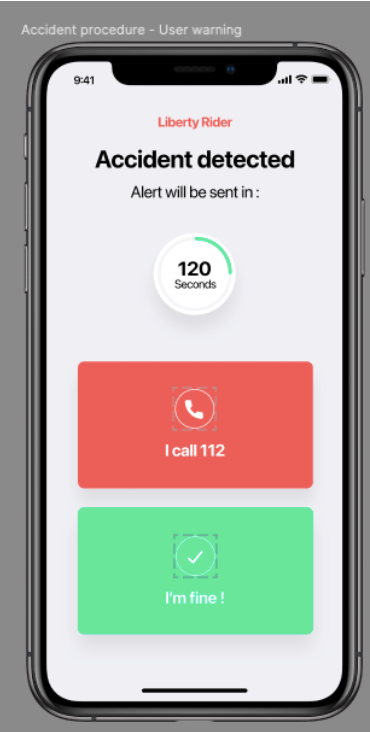 | At Accident detection: The alert countdown starts (usually a 120s timer). If the user is physically able to interact with the phone, it gives him enough time to take a breath, get up, look at the screen and make his choice. The user can call the 112 emergency number (see next stories), but it won't stop the countdown. At the end of the countdown, without any action of the user, an emergency request will be sent to SafeRider servers automatically. |
| Alarm | An alarm (sound & vibrations) should start. It allows the user to be alerted and to stop the process if needed. In many cases, unconscious or disoriented users are woken up by the alarm. | |
| Notification | During the accident process an OS notification should be displayed to attract user attention, especially since the app might not be visible (eg: the device is locked or another app is on top). This notification should inform the user that an accident has been detected, and allow a quick access to the accident screens. | |
| I'm fine | At click on "I'm fine": Triggers stopAlertCountdown(). This method will stop the alert countdown and no emergency will be sent to SafeRider servers. A confirmation popup can be shown to prevent inadvertent clicks. |
US#3 - Emergency Request
As an injured user, I want my emergency request to be sent, so I can be handled by emergency services if I can't move.
| Title | Screen | Description |
|---|---|---|
| Alert Countdown | 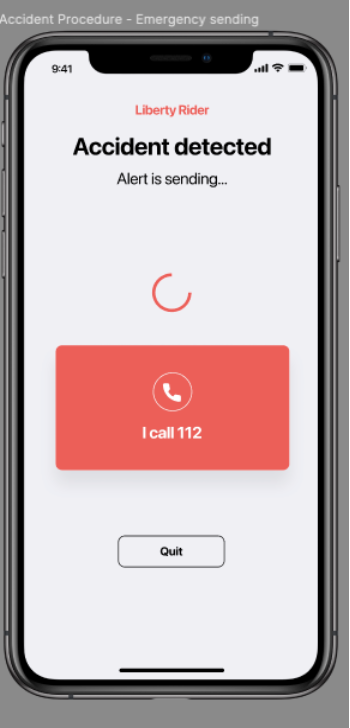 | At the end of the countdown: - The SDK tries to send an emergency to SafeRider servers - The sound continues to try to wake the user up - User location tracking starts for 30 min. At click on Quit: - Stop sound and vibration - Open Survey process (US#5) - Do not cancel the process just yet, the survey will. |
| Emergency Sent | 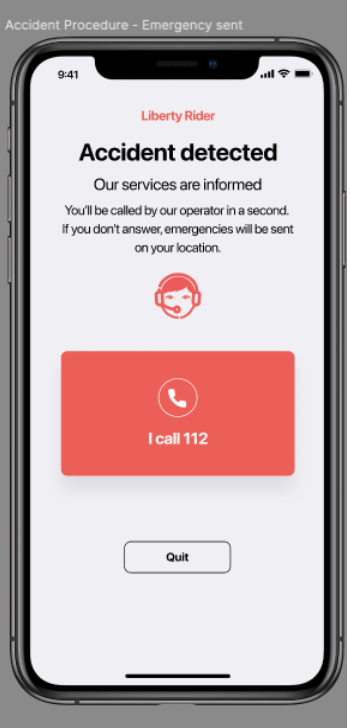 | If the emergency request is sent: - "We're alerted" is displayed - Sound and vibration remain active until a manual action |
| Emergency sending failure | 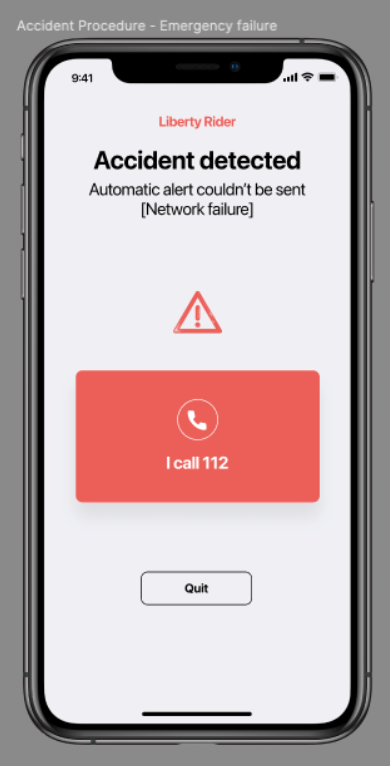 | If the emergency request cannot be sent: - An error message is displayed - Sound and vibration remain active until a manual action - Network retries are still silently made by the SDK |
US#4 - Call 112 Manually
As a conscious user, I want to call 112 by myself, to keep control over my caring
| Title | Screen | Description |
|---|---|---|
| Call 112 | 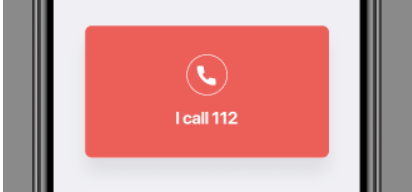 | At click on 'Call 112' - Stop the alert sound and vibration - Emergency request process keeps running unaffected - The platform "Start a phone call" modal is opened to dial 112. |
US#5 - Quick Survey to cancel the Emergency
As a user, I want to cancel the emergency if I did not fall.
As a user, I want to confirm that I fell.
| Title | Screen | Description |
|---|---|---|
| I didn't fall | 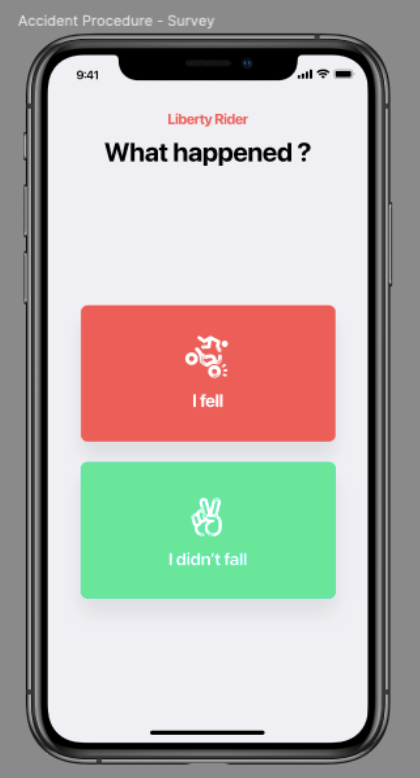 | Quick survey's objective: - Warn operators if they need to cancel the emergency - Get information on what happened to improve the algorithms. At click on "I didn't fall": - There can be a confirmation prompt ("Are you sure? Yes/No") - Then cancelEmergencyRequest() is called. - This method will stop the procedure on the operators' side, and stop location tracking. |
| I fell | 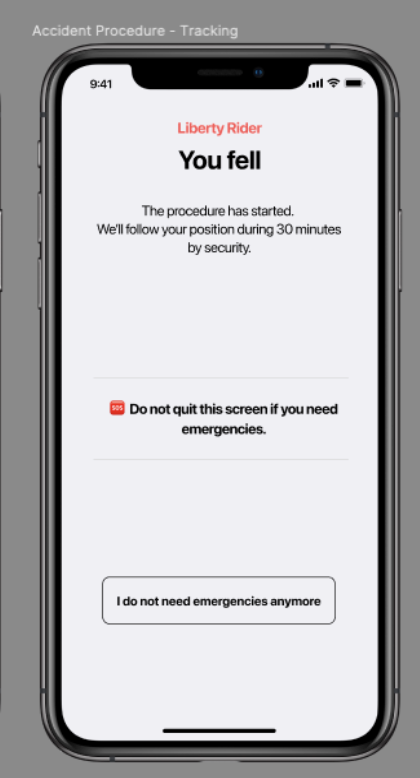 | At click on "I fell": Update the screen to show that the click was effective. Tell the user to keep the screen active while location tracking is active. At click on "I don't need help anymore": - Call resumeProtectionAfterEmergency(). - This call will reset the SDK Protection Status to "active" (like it was before the accident) and allow a new accident to be detected if it happens. |